Connect Trello to OverlayQA
Last updated: July 3, 2026
Connecting Trello to OverlayQA lets you export captured design QA issues directly to your Trello boards as cards. Each exported card includes screenshots, CSS selectors, computed CSS values, page URL, viewport size, and browser metadata.
Connect Your Trello Account
- In the OverlayQA sidebar, select one or more issues and click Export.
- Choose Trello as the export destination.
- Click Connect to Trello in the export modal.
- A Trello authorization page opens in a new tab. Approve access for OverlayQA.
- The export modal auto-updates when the connection is detected (polls for up to 2 minutes).
Tip: You only need to connect once. After the initial OAuth authorization, OverlayQA remembers your Trello connection for all future exports.
Configure Your Export
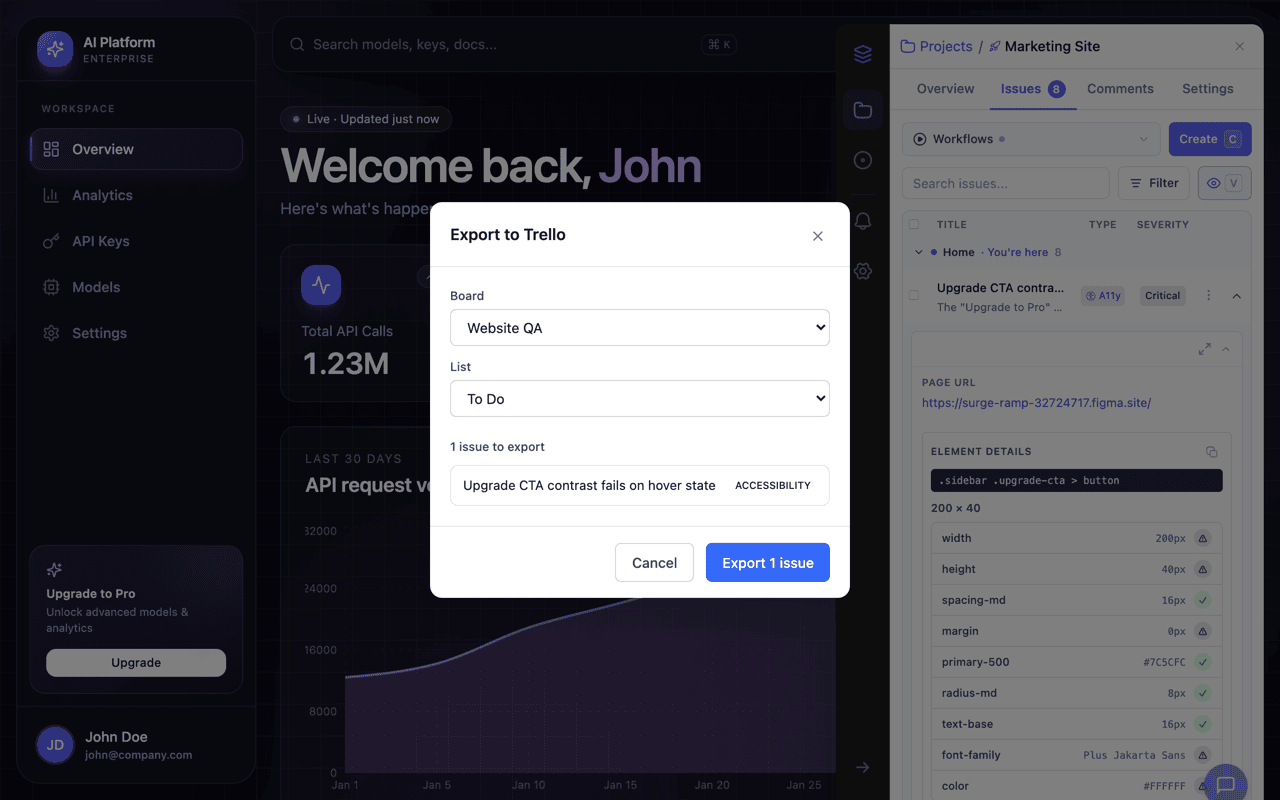
After connecting, configure where cards should land in Trello:
| Setting | Details |
|---|---|
| Board | Select the Trello board where cards should be created. |
| List | Choose the list within the board (e.g., "To Do", "Bugs"). |
What Gets Exported
Each exported Trello card includes:
| Field | Description |
|---|---|
| Name | The issue title from OverlayQA. |
| Description | Issue description with page URL, Figma frame link, browser and OS info, viewport dimensions, element CSS selector, and computed CSS values. |
| Attachment | Screenshot of the captured area or element. |
What Is Not Exported
Note: Exports include computed CSS values from the live page only. They do not include expected design spec values from Figma. There is no assignee picker in the export UI, so cards are created without a member assigned.
After Exporting
The results screen shows each issue with a clickable link to the created Trello card. Issues are marked as exported in the OverlayQA sidebar, and you'll see a warning if you try to re-export the same issue to Trello.
Two-Way Sync
OverlayQA keeps your issues in sync after export. Changes made in Trello automatically reflect in your OverlayQA dashboard:
| What Syncs Back | Details |
|---|---|
| Status changes | When a card is moved or archived in Trello, the OverlayQA issue status updates to match. |
| Assignee | Card membership in Trello reflects in OverlayQA so designers can see who picked it up. |
| Comments | Comments added in Trello appear on the OverlayQA issue thread. |